Pi Wallet 2FA Verification Setup | Types, Problems, & Hacks
Requirements Before Setting 2FA
Make sure these are in place before you begin:
1. Pi app updated to the latest version
You want to update the app because older versions may not show Step 3 in the Mainnet Checklist at all.
2. KYC Completed.
You must have completed KYC (at least tentative KYC). So, only Pioneers who have completed KYC, including tentative KYC, are eligible to add a trusted email and complete 2FA.
3. A real email Account you own and have access to.
You need a verified email account and not a throwaway, not someone else’s. This email becomes your account recovery lifeline
4. Stable Internet Connection.
Poor connections cause liveness check failures more than anything else. So, use a good network provider – mostly if you are in the 3rd world (it is well).
5. Good lighting for your face
The liveness check involves a camera scan. So, you need to be in a light environment.
Methods of Pi 2FA Setup Process
There are three paths to completing 2FA: Option 1 is waiting for the app to prompt you.
And Option 2 is going through the Mainnet Checklist directly. And Option 3 is receiving an email from the Pi team.
We will go with option 2. That is, going through the Mainnet Checklist route because it’s the one we control.
Pi 2FA Setup Process through the Mainnet Checklist
Step 1: Update Your Pi App
You want to open your app store, the Play Store on Android, the App Store on iPhone, and check whether a Pi Network update is available. If yes, install it if there is one.
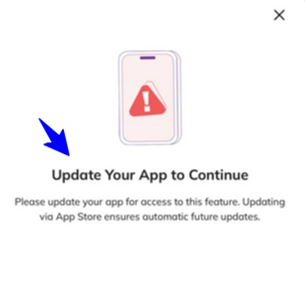
The checklist interface has changed across versions, and running an outdated build can make Step 3 invisible or unresponsive.
Once updated, open the Pi Network mining app (not just the Pi Browser).
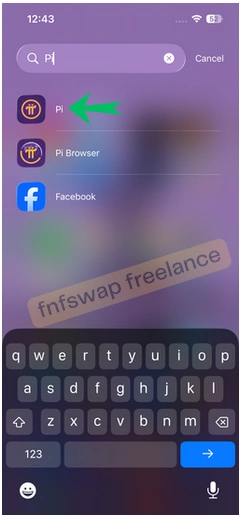
Step 2: Go to the Mainnet Checklist
Inside the Pi mining app, look for the Mainnet section. It’s usually accessible from the main menu or the side navigation, depending on your app version.
Once you’re in the Mainnet section, find and open the Mainnet Checklist.
You’ll see numbered steps – each one needs to be completed before migration eligibility is confirmed.
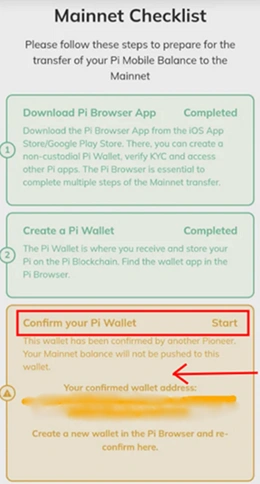
The steps we are looking for are Step 3, which is labelled “Confirm your Pi Wallet” or “Set up 2FA”.
Note: at other times, you will see this option on Step 9 of the mainnet checklist, just as the one below. Always watch out.
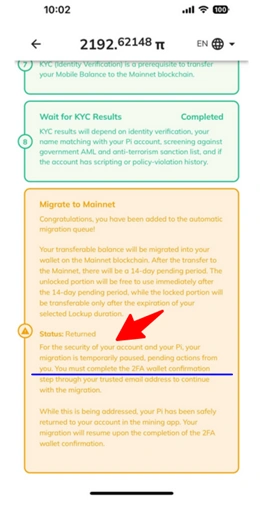
Step 3: Add a Trusted Email Address
When you tap Step 3 or Step 9, the app will check whether you already have a trusted email linked to your account.
If you don’t have one yet, you’ll be prompted to add it. Here’s what that involves:
- Enter the email address you want to use. Make it one you use regularly and will always have access to.
- The app will initiate a liveness check – a quick face scan to verify that you’re a real person and that you’re the actual account owner
- Follow the on-screen prompts during the liveness check: position your face in the frame, and follow whatever motion prompts appear (nodding, blinking, or similar, based on the version).
- Once the liveness check passes, the email will be registered as your trusted address
If you already have a trusted email, the app will show it to you, and you can proceed to confirm the email.
Note: Use an email you genuinely control and will always have access to.
Otherwise, if you use a random email, you won’t be able to finish 2FA or recover your account later – that could stop you from migrating your Pi or getting it back if something goes wrong.
Step 4: Confirm Your Migration Wallet
After the email is verified, you’ll reach the 2FA interface. In this interface, you must confirm access by confirming the existing wallet address.
Unless you have a specific reason to change wallets, confirm the default one; you can create a new wallet if you want.
Note: if you create a new wallet, you will have to wait for the entire migration process all over again.
Step 5: Check Your Email for Pi Reply
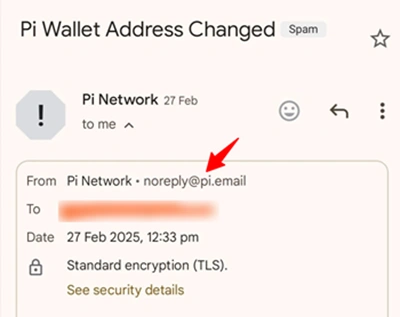
Check Your Email – for an inbox from the official Pi email address – noreply@pi.email.
If the sender is not from that source, do not open or click any link, please; otherwise, you/wallet might be compromised.
After confirming your wallet, Pi Network sends a verification email to your trusted address.
Open your inbox and look for an email from noreply@pi.email. That’s the only address Pi Network sends 2FA emails from. Do not trust any other email to avoid phishing or scam attempts.
If you don’t see it in your inbox within a few minutes, check your spam or junk folder– it commonly lands there, especially on Gmail and Outlook.
Click the verification link inside the email. This final step confirms the full 2FA setup.
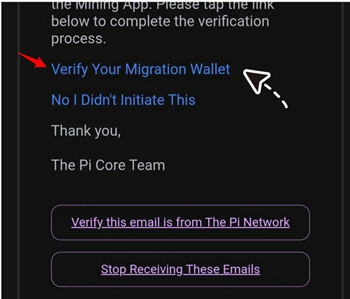
Step 6: Check for the Green Tick
Once the email link is clicked and confirmed, go back to your Mainnet Checklist.
Go to Step 3. If everything had been done well, it would now show as complete.
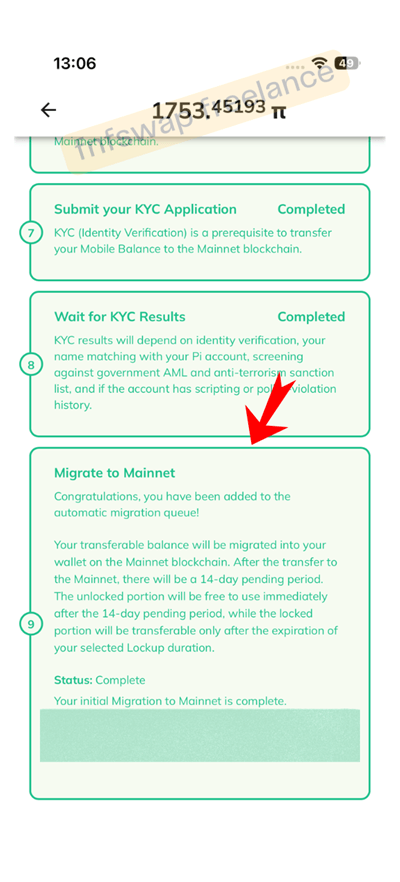
And if all other checklist steps are also done, your migration eligibility is in place, and you’ll be in the queue for Pi to move to your Mainnet wallet.
How to Know an Email Came from Pi
If you receive an email from/sources/senders different from the ones specified by the Pi team, just know they are scams. Spam it.
The emails from the Pi team are:
@pi.email for (Pioneer email verifications).
@picoreteam.org, and @minepi.com for (support emails).
The one you will receive from Pi for your verification ends with: @pi.email.
To know this, check the sender source – see below.
Option 2. Pi 2FA Verification by Wallet App Prompt – how to go about it
For some pioneers, the 2FA prompts just showed up, and that’s it. They go on to verify.
Oftentimes, the prompt will appear in the Pi Network mining app when you start a new mining session.
All you need to do is confirm the prompt or pop-up, then follow the 2FA instructions.
If you get one of these prompts:
- Don’t dismiss it – just tap through it immediately and follow up to process as outlined above.
- Follow the same email and liveness check process described above.
- Check your email for the confirmation link afterward.
Option 3. Pi 2FA Verification by Email – how to go about it
Maybe you fall into this category; that’s great.
You might also receive an email from noreply@pi.email directly, with a link to complete 2FA. That works too.
But not so fast!
Confirm that the email is from a verified source of the Pi; otherwise, discard it/them. And if legit, just click the link and follow the process.
The 14-Day Mainnet Migration Rule You Must Know
Here’s something that catches a lot of Pioneers off guard.
If 2FA isn’t completed within 14 days after initiating migration, tokens are rolled back to the mining app. They don’t disappear. But they return to your app balance, and you have to go through the migration process again.
When you see this. Don’t panic, because it was why Pi Network asked you to complete 2FA as soon as you’re prompted.
It’s not something you can leave sitting for a few weeks and come back to, right? Yes.
If your migration has already started and the 14-day window is ticking, finishing 2FA is urgent.
Common 2FA Problems and How to Fix Them
The Pi communities have been vocal about 2FA. These are the most reported problems and what actually helps:
Problem 1: I never got an email.
These are the most common complaints. Many users report never receiving the verification email or getting links that are broken, expired, or redirect to error screens.
Try these Hacks.
- Check your spam/junk folder first – it almost always lands there on first delivery.
- Add noreply@pi.email to your contacts or safe senders list, then request a resend at the Pi support portal – https://support.help.minepi.com/servicedesk/customer/portals
- If your email provider aggressively filters, try switching to a Gmail address for your trusted email – Gmail tends to receive Pi’s emails most reliably.
- Make sure you’re checking the same email address you registered in the app
Problem 2: The liveness check keeps failing
The liveness check is a face verification step. It might be tricky, but fixable with the right steps.
What usually works:
- Move somewhere with bright, even lighting – the front-facing light works best, not backlight.
- Remove glasses or hats if you’re wearing them.
- Make sure your face fills the frame properly – not too close, not too far
- Check that your camera permission is enabled for the Pi app.
- Use a stable WiFi connection because poor connectivity causes the check to drop mid-scan.
- Close background apps to free up memory, especially on older phones.
Problem 3: I completed 2FA, but my Pi was returned to the app
This one causes a lot of panic, but it’s not permanent. How?
Now, in some cases, completing the 2FA step causes migration to reset, sending tokens back to the mobile app and forcing users to start over.
If this happens, don’t panic. Your Pi hasn’t disappeared – it’s back in your mining app balance. Once 2FA is confirmed as completed in your Mainnet Checklist, you can re-initiate the migration.
No need to bother because it’s just a normal setup. The system is designed to re-queue you automatically once verification is in order.
Problem 4: Step 3 doesn’t appear in my checklist.
This is mostly caused by an old Pi wallet App. Update the app, and it is almost going to work.
Next, restart the app after updating.
And lastly, if it still doesn’t appear, check whether your KYC status is fully approved. Step 3/Step 9 only becomes visible after KYC is in place
Problem 5: I completed 2FA, but the checklist still shows incomplete
If that is the case, then you want to give it some time, as app sync can lag.
Force-close the Pi app, reopen it, and check again. If it’s still showing incomplete after several hours, try:
- Logging out of the app and back in
- Clearing the app cache (Android: Settings → Apps → Pi Network → Clear Cache)
- Reinstalling the app as a last resort (your account data is stored on the server-side, not locally).
Pi 2fa Wallet Confirmation Not Working – What NOT to Do During 2FA
A few things the community has learned the hard way:
1. Don’t use a temporary or shared email.
I mean, if you lose access to that email later, you lose your 2FA recovery path. So, only use an email you’ll have for years.
2. Don’t click 2FA links from any email other than noreply@pi.email.
Phishing emails that mimic Pi Network have been circulating. They look almost identical to real Pi emails. Check the sender’s address carefully.

I have taken time to explain that. Follow the steps, and you will be fine.
3. Don’t share your passphrase with anyone.
2FA is about email verification, not your wallet passphrase. Anyone asking for your passphrase as part of “2FA setup” is scamming you.
4. Don’t rush through the liveness check.
Taking it slow and following each prompt properly gives you a much higher pass rate than rushing.
What Happens After 2FA is Complete?
Once 2FA is set up, and your Mainnet Checklist shows Step 3 as done, you’re eligible for migration (assuming the rest of your checklist is complete, and your KYC is approved).
Give it some time, and your Pi will move to your Mainnet wallet as part of the ongoing rollout – either in the current migration wave or the next one.
Once Pi lands in your Mainnet wallet with a transferable balance, you have real options for what to do with it.
Ready to Cash Out Your Pi? fnfSwap Freelance Can Help
Once your 2FA is done and your Pi is sitting in your Mainnet wallet, the next question most Pioneers have is: how do I actually convert this to real money?
That’s where fnfSwap Freelance comes in.